
Remote access software lets a technician see and control a computer from somewhere else, either on a machine nobody is sitting at (unattended access) or on a user's screen while they watch (on-demand support). For an IT lead the useful question isn't which tool has the most features, but who can connect to what, how each connection is licensed, and whether you can show afterwards who did it.
The eight tools below range from free (Chrome Remote Desktop and the open source RustDesk server) to per-technician platforms for MSPs. Each entry describes how a connection starts for an unattended device and for a user who calls for help, which plan unlocks recording, file transfer and single sign-on, and what reviewers complain about. We read vendor pricing, feature and help pages and did not run these products.
- remote access tools compared
- 8
- tools you can use at work for free (Chrome Remote Desktop, RustDesk open source)
- 2
- lowest published per-user monthly price (Splashtop Remote Access Solo, billed annually)
- $6
Our picks: the best remote access software by situation
TeamViewer is the broadest option for mixed fleets that need integrations and a central console, but the right tool depends on how many technicians connect at once and how many devices you manage. The picks below match one tool to each situation.
 Best for mixed fleets and ticketing integrationsTeamViewerUnattended and on-demand sessions across Windows, macOS, Linux, iOS, Android and ChromeOS, with a company account and integrations for ServiceNow, Jira, Zendesk and Intune.
 Best value per userSplashtopPer-user remote access from $6 a month billed annually, plus a separate per-technician Remote Support product with code-based sessions.
 Best for MSPs and self-hostingConnectWise ScreenConnectPriced per concurrent technician with unlimited unattended agents on Standard and Premium, cloud or on-premises.
 Best for separating support from always-on devicesZoho AssistOn-demand support is licensed per technician and unattended computers are licensed in blocks, so each pool is sized on its own.
 Best for scaling concurrent connectionsAnyDeskBuy extra concurrent connections instead of extra seats; only the person who starts the session needs a license.
 Best flat price for many computersRemotePCTeam covers 50 computers and unlimited users for one monthly price.
 Best open source option you hostRustDeskFree open source client and server; a paid Pro server adds a web console, audit log and SSO.
 Best free tool for a few machinesChrome Remote DesktopNo cost, runs in the browser, and a one-time code starts a support session.
What remote access software is
Remote access software is a program that lets one person view and control another computer over the internet, as if sitting at it. A small agent or host app runs on the target machine, and the technician connects through a client app or a browser. Remote desktop software is the same idea, so the two names are used interchangeably in practice.
The products split into three uses, and most tools here cover more than one:
- Unattended access keeps an agent on a computer, server or kiosk so a technician can connect at any time, with nobody at the machine.
- On-demand remote support starts a session while the user is present, usually with a one-time code or invitation link, and ends when the user closes it.
- Remote desktop for your own machines is a person reaching their own office or home computer. Chrome Remote Desktop and the low-priced tiers of RemotePC and Splashtop fit here.
Remote access software isn't a VPN, which connects a device to a network rather than controlling a computer's screen, and it isn't a full remote monitoring and management (RMM) platform. RMM tools such as  Atera and
 NinjaOne bundle remote control with patching, monitoring and ticketing. If you already run one of them, its built-in remote session may be all you need.
Microsoft's Remote Desktop Protocol (RDP) is the built-in option on Windows. It works well inside a network or behind a gateway, but without question opening RDP directly to the internet is a long-standing way in for attackers. Many teams replace exposed RDP with a remote access tool that sits behind multi-factor authentication and keeps a session log, or with a VPN or gateway in front of RDP.
Remote access software compared
| Tool | Category | How a session starts | Entry price (USD) | G2 rating |
|---|---|---|---|---|
| TeamViewer | Remote access and support, per user | Technician connects by ID or from the managed device list; users run QuickSupport for on-demand help | Annual subscriptions per licensed user: Business (1 user, 200 managed devices, 1 channel), Premium (15 users, 300 managed devices), Corporate (30 users, 500 managed devices, 3 channels); free for personal use only; USD list price not stated here | 4.5 (3,960) |
| Splashtop | Remote access and support, per user or technician | Streamer on the device for unattended access; user runs SOS and reads out a 9-digit code for support | Remote Access Solo $6, Pro $8.25, Performance $13 per user a month billed annually; Remote Support (SOS) from $22 per concurrent technician a month; Enterprise by quote; free trial, no free plan | 4.7 (273) |
| ConnectWise ScreenConnect | Remote support, per concurrent technician | Technician opens the Host page; an installed access agent gives a persistent connection | Standard $47 and Premium $57 per concurrent technician a month billed annually ($62 and $72 monthly); One $30 a month for 1 session and 10 unattended agents; Enterprise by quote; free trial, no free plan | 4.7 (504) |
| Zoho Assist | Remote support plus unattended access, two licenses | Technician starts a session and shares a code or link; unattended devices run an agent | Remote Support per technician a month, billed monthly: Standard $12, Professional $18, Enterprise $28 (1 to 5 technicians); Unattended Access is a separate license sold in blocks of at least 25 computers, from $12 a month for 25; 15-day trial | 4.7 (714) |
| AnyDesk | Remote access, per concurrent connection | Licensed user connects out to a device by password or to a user who shares an AnyDesk address | Annual subscriptions: Solo (1 user, 1 concurrent connection, 100 managed devices), Standard (up to 20 users, 500 managed devices), Advanced (up to 100 users, 1,000 managed devices), Ultimate by quote; free for personal use only; USD list price not stated here | 4.5 (1,101) |
| RemotePC | Remote access, flat plans by computer count | Technician logs in and picks an online computer; user shares a code for attended sessions | Flat plans by computer count, billed monthly: Solo $2.95 (1 computer), Pro $7.50 (10), Team $28.50 (50 computers, unlimited users), Enterprise $56.25 (100); lower first-year annual rates; 7-day trial, no free plan | 4.7 (623) |
| RustDesk | Open source, self-hosted remote desktop | Client connects peer to peer, with a relay on your own server as fallback | Open source client and server are free; RustDesk Server Pro is self-hosted and billed annually: Individual $11.88 a month (1 login user, 20 devices), Basic $23.88 a month (10 users, 100 devices), Customized from $23.88 plus $1.20 per extra user | No reviews yet |
| Chrome Remote Desktop | Free browser-based remote desktop | Owner connects with a PIN; for support, the user generates a one-time code | Free | 4.2 (52) |
 The IT Lead Our product | Service account ownership reviews | Collects owner attestations for service accounts and keeps the review trail | Team $49/month (up to 250 service accounts), MSP $129/month (up to 1,000), per workspace | No reviews yet |
Plans and limits checked on November 9, 2026. Where no USD figure is shown, the vendor sells annual plans by region or quote.
How a remote access session works
Every tool in this list follows the same path, and the differences are in which step you control. Use it as a test script during a trial: walk one unattended machine and one user call through all four steps.
- Step 1Install the agent or run the app
- ConnectWise ScreenConnect
- Zoho Assist
- RemotePC
What breaks agent never reaches a laptop that's off the network - Step 2Sign in and authenticate
- TeamViewer
- AnyDesk
- Splashtop
What breaks a shared technician login hides who connected - Step 3Connect and work
- Splashtop
- AnyDesk
- Chrome Remote Desktop
What breaks a weak connection makes the screen lag - Step 4Log, record and end
- TeamViewer
- ConnectWise ScreenConnect
- RustDesk
What breaks no recording on the plan you bought
Two details from the table above matter in practice. The person who starts the connection is the one who needs a license in TeamViewer and AnyDesk, so end users who only accept a session cost nothing. And an unattended agent stays installed after the session, so retire it when a device leaves the fleet.
How we chose the 8 remote access tools
We started from the tools that appear in recent roundups for IT teams and kept those that support unattended access, are sold for business use and publish enough about plans to compare. For each tool we read four sources: the pricing page, a product or feature page, a help or documentation article that shows how a session starts, and a review page for the rating and the most common complaints.
A tool had to meet these criteria:
- It supports unattended access, on-demand support or both, on Windows and macOS at least.
- It encrypts sessions and offers two-factor authentication.
- It states how it's licensed, whether per user, per concurrent technician or per computer.
- It fits an IT team of 1 to 20 people or an MSP.
BeyondTrust and similar enterprise privileged access platforms are left out, because they're built for regulated environments with a vendor-led purchase, not a small team's remote access tool.
The best remote access software, reviewed
Each entry below follows one device through the tool: how a technician reaches an unattended machine, how an on-demand session starts, and which plan gates the features that matter. The card shows the price, the G2 rating, when to choose the tool and when to skip it.
TeamViewer
Best for mixed fleets and ticketing integrations
TeamViewer is the most widely known remote access product, and it covers the full range: unattended devices, on-demand support, mobile and a central company account. Its limit for small teams is the channel count: you get one active connection slot on Business and Premium, and three on Corporate.
A technician signs in to the TeamViewer client and connects to an unattended device from the managed device list or by ID and password. On Premium and Corporate the devices are assigned to a company account, grouped in the Management Console and controlled by policies. For an on-demand session the end user runs QuickSupport and reads out an ID, and only the person who starts the connection needs a license.
One channel can hold several sessions in tabs, up to 10 per device on Premium and 15 on Corporate. Premium lists session record and playback, file transfer with queuing, remote printing, black screen with input blocking, Wake-on-LAN and a remote terminal. User management needs Premium or Corporate, and MSI mass deployment is a Corporate feature. ChromeOS and Windows Server devices need Premium or Corporate, and connecting to mobile devices needs an add-on.
The free version is for personal, non-commercial use only. TeamViewer's own help article says that even checking work email from a home office counts as commercial use, and flagged devices can stay blocked.
- You need one tool for unattended access and on-demand support across Windows, macOS, Linux, iOS, Android and ChromeOS, with a company profile and user management on Premium or Corporate.
- Your team wants ticketing and collaboration integrations (ServiceNow, Jira, Zendesk, Salesforce, Microsoft Teams, Slack, Intune) available through the Standard Integration Package.
- You want a free tool for work: the free version is personal use only and TeamViewer's own help article says even checking work email from home counts as commercial use.
- You need many technicians connecting at once on a small budget: Business and Premium include only 1 concurrent channel, and Corporate is capped at 3 channels by default.
- Users like
- ease of use and reliable connections, per G2 reviewers
- Users dislike
- price compared with alternatives and commercial-use flags on the free tier, per G2 reviewers
- Source: G2, 3,960 reviews
- Starting price
- Annual subscriptions per licensed user: Business (1 user, 200 managed devices, 1 channel), Premium (15 users, 300 managed devices), Corporate (30 users, 500 managed devices, 3 channels); free for personal use only; USD list price not stated here
- Unattended access
- Yes. Connect to computers, servers, kiosks and other devices when no one is present; managed devices are assigned to the company account (200 Business, 300 Premium, 500 Corporate).
- File transfer
- Included. The Premium feature overview lists file transfer including transfer queuing.
- Platforms
- Windows, macOS, Linux, Android, iOS, ChromeOS, rugged devices, kiosks and point-of-sale systems. ChromeOS and Windows Server devices need Premium or Corporate; connecting to mobile devices needs the Mobile Device Support add-on.
- Free tier
- Free for personal, non-commercial use only. TeamViewer states commercial use includes work from a home office, and flagged devices can stay blocked after reset.
- Plan limits
- Business 1 user and 200 managed devices; Premium 15 users and 300 devices; Corporate 30 users and 500 devices
- Integrations
- ServiceNow, Jira, Freshworks, Zendesk, Intune, Teams, Slack, Salesforce through the Standard Integration Package
- Free use
- Personal and non-commercial only
Splashtop
Best value per user
Splashtop sells two products. Remote Access is licensed per user from $6 a month and suits people reaching their own or staff computers. Remote Support is licensed per concurrent technician and adds code-based support sessions for your help desk.
For unattended work an admin installs the Splashtop Streamer on each Windows or Mac computer, either the standard build or a customized streamer made in the web console. Technicians connect from the Splashtop Business app on Windows, Mac, iOS, Android or Chromebook, or from Chrome. For on-demand help the user runs the SOS app without installing anything, which shows a 9-digit code the technician enters to connect.
Remote Access costs $6 (Solo), $8.25 (Pro, up to 3 users can connect to one computer) or $13 (Performance) per user a month billed annually. Remote Support starts at $22 a month per concurrent technician. SSO and SAML, IP whitelisting, cloud session recording and SIEM logging are listed as Enterprise features, as is unattended access to Android and IoT devices. Two people on one unattended computer need two licenses.
- You want low per-user pricing for remote access to your own or staff computers, starting at $6 per user a month billed annually.
- You need unattended and code-based attended support on one console, with PSA/ITSM links such as Freshservice, Zendesk and Jira.
- You need SSO, IP whitelisting, cloud session recording or SIEM logging below the Enterprise tier, since the vendor page lists these as Enterprise features.
- You need unattended Android access or support for more than 1,200 managed devices without a custom Enterprise quote.
- Users like
- ease of use and value, per G2 reviewers of Splashtop Remote Support
- Users dislike
- a dated interface and some feature gaps, per G2 reviewers
- Source: G2, 273 reviews
- Starting price
- Remote Access Solo $6, Pro $8.25, Performance $13 per user a month billed annually; Remote Support (SOS) from $22 per concurrent technician a month; Enterprise by quote; free trial, no free plan
- Unattended access
- Windows, Mac and Linux endpoints with or without an end user present; Android and IoT unattended access is Enterprise only; two users on one computer needs two licenses
- File transfer
- Copy-and-paste and drag-and-drop; Remote Access also transfers files without starting a remote session
- Platforms
- Control Windows, Mac and Linux endpoints; attended support for iOS and Android
- Free tier
- No permanent free tier; free trial on all plans (length not stated)
- Integrations
- Freshservice, Freshdesk, Zendesk, Spiceworks Help Desk, Jira, Microsoft Teams
- Free use
- Free trial, no free plan
ConnectWise ScreenConnect
Best for MSPs and self-hosting
ConnectWise ScreenConnect is built around the technician. You pay per concurrent technician, unattended access agents are unlimited on Standard and Premium, and you can run it in the cloud or on your own server. It's very often the choice for MSPs that need role-based control over which technician can reach which customer.
On the cloud or on-premises host a technician logs in to the web Host page. For unattended machines the admin builds an access agent installer and deploys it to desktops, laptops, servers or mobile devices, and each device then appears as a session on the Host page. For on-demand help, remote support connects a technician to any device when needed. Role-based permissions can limit machines or technicians by group, and users can be notified or asked for consent before a connection.
Standard ($47 per concurrent technician a month billed annually) allows up to 3 sessions per technician and adds Backstage, which lets a technician view and transfer files without disturbing the user, plus the command line and Wake-on-LAN. Premium ($57) allows up to 10 sessions and adds video auditing and a diagnostics toolkit. Enterprise adds Privileged Access Management. The security page lists SSO, SAML, MFA, LDAP, audit logs and SOC 2 Type 2 for the cloud service. Vendor pages differ on which plan includes session recording, so confirm it before you buy.
- You need cloud or self-hosted deployment with SSO, SAML, MFA, LDAP and role-based permissions listed on the security page.
- You want to pay per concurrent technician with unlimited unattended agents and extensions such as ConnectWise RMM.
- You want predictable per-seat pricing for a large team of simultaneous techs, since each concurrent technician is billed separately.
- You need session recording at the cheapest tier: the pricing page lists it from Standard, but the security page ties recordings to Premium Support, so confirm before buying.
- Users like
- reliable, fast connections, per G2 reviewers
- Users dislike
- security concerns after past incidents and pricey extras, per G2 reviewers
- Source: G2, 504 reviews
- Starting price
- Standard $47 and Premium $57 per concurrent technician a month billed annually ($62 and $72 monthly); One $30 a month for 1 session and 10 unattended agents; Enterprise by quote; free trial, no free plan
- Unattended access
- Access agents give persistent connections to desktops, laptops, mobile devices and servers; unlimited agents on Standard and Premium, 10 on One; optional end-user consent and maintenance notifications
- File transfer
- Instant copy-paste or drag-and-drop; Backstage lets techs view and transfer files without the end user seeing it; shared Toolbox for scripts and executables
- Platforms
- Windows, Mac, Linux and mobile devices (vendor homepage); iOS and Android guest client support from Standard
- Free tier
- No permanent free tier shown on the pricing page; each plan links to a trial (length not stated)
- Integrations
- Over 100 extensions, including ConnectWise RMM
- Plans
- One $30, Standard $47, Premium $57, Enterprise by quote
- Deployment
- Cloud or on-premises
Zoho Assist
Best for separating support from always-on devices
Zoho Assist splits the job into two licenses. Remote Support covers on-demand sessions and is priced per technician. Unattended Access covers always-on computers and is sold in blocks of at least 25. That split lets you size each pool on its own, though reviewers don't always like it.
For an on-demand session the technician logs in, clicks Start and shares the session ID or an invitation link by email or SMS. Technicians don't install anything to start a session. For unattended access an agent is installed on each computer through a download link or bulk deployment tools, computers are sorted into groups for access control, and the technician opens Devices and chooses Access Devices. Session confirmation can require the user's consent first, and Wake on LAN powers on sleeping machines. The agent runs with system-level privileges.
Remote Support costs $12 (Standard), $18 (Professional) or $28 (Enterprise) per technician a month on monthly billing for 1 to 5 technicians, with 2, 4 or 6 concurrent sessions per technician. File transfer starts at Standard. Session recording and session audit are in Remote Support Enterprise and Unattended Professional, as are remote script execution and webhooks. Above 25 technicians pricing is by quote.
- You need to license on-demand helpdesk sessions per technician and a separate pool of unattended computers, with unattended access scaling from 25 to 10,000 computers.
- You want Enterprise-tier extras such as departments, session recording, session audit, remote script execution and webhooks, or Professional unattended features such as session recording and mobile/IoT device support.
- You want one flat license covering both support and unattended access: Zoho splits them, and Unattended Access has a 25-computer minimum.
- You need a large technician team on a fixed rate: pricing above 25 technicians is contact sales, and Standard allows only 2 concurrent sessions per technician.
- Users like
- ease of use and affordability, per G2 reviewers
- Users dislike
- lag on weak connections and the split between support and unattended licenses, per G2 reviewers
- Source: G2, 714 reviews
- Starting price
- Remote Support per technician a month, billed monthly: Standard $12, Professional $18, Enterprise $28 (1 to 5 technicians); Unattended Access is a separate license sold in blocks of at least 25 computers, from $12 a month for 25; 15-day trial
- Unattended access
- Yes, separate Unattended Access license (Standard, Professional, minimum 25 computers). Agent installs per computer via download link or in bulk with Deployment Distributor, Bulk Deployment Manager or startup scripts; computer groups, Wake on LAN, session confirmation. Agent runs with system-level privileges.
- File transfer
- Included from Standard on both Remote Support and Unattended Access.
- Platforms
- Windows, macOS, Linux, iOS, Android, ChromeOS, Raspberry Pi
- Free tier
- Zoho's plan comparison shows the free plan with 1 remote support technician and no unattended access, while other listings mention 5 unattended computers, so confirm the free edition's scope with Zoho. 15-day trial of paid plans, no credit card.
- Unattended pricing
- Blocks of 25 computers or more, from $12 a month for 25 on Standard
- Trial
- 15 days, no credit card
AnyDesk
Best for scaling concurrent connections
AnyDesk's licensed unit's the concurrent outgoing connection. Solo allows one, Standard one plus add-ons up to 20, and Advanced two plus add-ons up to 50. A busy help desk can add connections without adding named seats, and only the person who starts the session needs a license.
For an unattended device the technician connects with a password set on the remote device, and nobody has to accept the session. Optional two-factor authentication protects unattended access. For an on-demand session the user shares their AnyDesk address and accepts the request, and permissions such as mouse and keyboard control can be adjusted, with a privacy mode that blanks the remote screen.
The my.anydesk console manages users, address books and devices. Solo is capped at 1 user, 1 connection and 100 managed devices. User management, a custom client, file transfer and session recording are listed from Standard, which covers up to 20 users and 500 managed devices. Advanced adds roles, a command-line interface, MSI mass deployment and Group Policy support for up to 100 users and 1,000 devices. SSO, CRM and ITSM integrations and on-premises hosting are on Ultimate, which is sold by quote.
- You want to scale simultaneous technician sessions by buying extra concurrent connections (Standard up to 20, Advanced up to 50) instead of per-user seats.
- You need SSO, CRM and ITSM integrations or on-premises hosting, which AnyDesk lists on the Ultimate plan.
- You need session recording, custom branding or file transfer on the cheapest tier: AnyDesk lists these from Standard up, not on Solo.
- You want a usable free tool for work: the free version is for personal use with limited features and G2 reviewers criticize the free tier.
- Users like
- easy setup and speed on slow connections, per G2 reviewers
- Users dislike
- connection delays and a limited free version, per G2 reviewers
- Source: G2, 1,101 reviews
- Starting price
- Annual subscriptions: Solo (1 user, 1 concurrent connection, 100 managed devices), Standard (up to 20 users, 500 managed devices), Advanced (up to 100 users, 1,000 managed devices), Ultimate by quote; free for personal use only; USD list price not stated here
- Unattended access
- Yes. Password-based access without accepting each session; managed devices 100 (Solo), 500 (Standard), 1,000 (Advanced), 2,000 and up (Ultimate).
- File transfer
- File Manager moves files between two devices during a session; listed from Standard up on the pricing page.
- Platforms
- Cross-platform clients; mobile device management of Android and iOS listed from Advanced. Full OS list not stated on the fetched pages.
- Free tier
- Free for personal use with a limited feature set and support; professional use requires a license.
- Plan limits
- Solo 100 managed devices; Standard 500; Advanced 1,000; Ultimate 2,000 and up
- Security
- TLS 1.3, 256-bit AES, TOTP two-factor, access control list, session logs
- Free use
- Personal use only, with limited features
RemotePC
Best flat price for many computers
RemotePC prices by computer count, not by technician. Team covers 50 computers with unlimited users for $28.50 a month on monthly billing, which makes it the cheapest way in this list to keep a larger always-on fleet reachable.
A tech installs the RemotePC host on each computer and registers it to the account. To connect to an unattended machine the tech opens the app, logs in and picks an online computer under Always-ON Remote Access, entering the per-machine Personal Key if prompted. Several connections can be open to one computer, and the host sees a Remotely accessed by status with an option to disconnect. For an on-demand session, Attended Access lets someone connect by sharing a session code.
The plans are Solo ($2.95, 1 computer), Pro ($7.50, 10 computers), Team ($28.50, 50 computers, unlimited users) and Enterprise ($56.25, 100 computers). Team and Enterprise add a central web console, Active Directory sync and SAML2 SSO. Sessions can be recorded to a local folder, and remote access logs track usage. Extra computers cost $20 a year each. Discounted annual prices apply to the first year, so check the renewal rate.
- You want predictable flat pricing for many always-on computers (50 on Team, 100 on Enterprise) with unlimited users.
- You need low-cost unattended access with file transfer, session recording, remote printing and a SAML2 SSO option on Team or Enterprise.
- You need a free tier: none is listed, only a 7-day trial.
- You need a polished ticket-style on-demand support desk or silent mass deployment out of the box: reviewers cite slower connections and one reviewer reports no silent MSI installer, though the features page mentions an MSI deployed via NinjaOne.
- Users like
- easy setup and low price, per G2 reviewers
- Users dislike
- slow performance on weak connections and renewal prices above the intro rate, per G2 reviewers
- Source: G2, 623 reviews
- Starting price
- Flat plans by computer count, billed monthly: Solo $2.95 (1 computer), Pro $7.50 (10), Team $28.50 (50 computers, unlimited users), Enterprise $56.25 (100); lower first-year annual rates; 7-day trial, no free plan
- Unattended access
- Always-ON Remote Access to registered computers at any time; multiple connections to one computer allowed at once; scheduled remote access, grouping and deployment on Enterprise.
- File transfer
- Files and folders, including mapped drives, with search, upload, download and drag and drop.
- Platforms
- Connect from PC, Mac, Linux, iPhone, iPad, Android and the browser; Android devices and Chromebooks can be viewed or controlled.
- Free tier
- No free plan listed; 7-day free trial, no credit card.
- Plan limits
- Pro 10 computers, Team 50, Enterprise 100
- Security
- TLS 1.2 and AES-256, per-machine Personal Key, access logs, SAML2 SSO on Team and Enterprise
- Trial
- 7 days, no credit card; no free plan
RustDesk
Best open source option you host
RustDesk is an open source remote desktop client with a free self-hosted server. If you can run a small server, you keep relay and device data on systems you manage and pay nothing for the base setup. The paid Pro server adds a web console, address book, audit log and single sign-on.
RustDesk runs as a client on each device. By default connections are made peer to peer, and fall back to a relay server (hbbr) when that fails; the ID and rendezvous server is hbbs. With the free open source server you deploy both yourself and get community support. RustDesk Server Pro adds a web console, address book, device management, access control, centrally pushed settings and multiple relay servers.
Pro is self-hosted, billed annually and not a SaaS plan. Individual is $11.88 a month for 1 login user and 20 managed devices. Basic is $23.88 a month for 10 users and 100 devices, with OIDC and LDAP. Audit logging of connections and file transfers starts at Individual. Docker is the recommended install. Session recording isn't described on the pricing or Pro documentation pages.
- You can host a small VPS (docs: 1 CPU core and 1 GB RAM supports about 1,000 concurrent relay connections) and want to keep relay and device data on systems you manage.
- You want flat low-cost licensing: $23.88/month billed annually covers 10 login users and 100 managed devices with unlimited concurrent connections.
- You need a vendor-hosted cloud service with no server to maintain; Pro must be installed and run by you (Docker recommended, TCP 21114 to 21119 and UDP 21116 open).
- You need session recording: it is not mentioned on the pricing or Pro docs pages.
- Starting price
- Open source client and server are free; RustDesk Server Pro is self-hosted and billed annually: Individual $11.88 a month (1 login user, 20 devices), Basic $23.88 a month (10 users, 100 devices), Customized from $23.88 plus $1.20 per extra user
- Unattended access
- Not described on the pricing or Pro docs pages I read; Pro manages devices via web console and address book.
- File transfer
- Pro log management covers connections, file transfers and alarms (Pro docs), implying file transfer is supported; transfer feature details not published on the pages read.
- Platforms
- not published on the pages read
- Free tier
- Free open source client and free OSS server (hbbs ID/rendezvous and hbbr relay), community support via Discord.
- Hosting
- Self-hosted only; docs say 1 CPU core and 1 GB RAM supports about 1,000 concurrent relay connections
- Security
- 2FA, OIDC, LDAP on Basic and up, access control and audit log on Pro
- Free use
- Open source client and server are free
Chrome Remote Desktop
Best free tool for a few machines
Chrome Remote Desktop is free and runs in Chrome. It fits a handful of your own computers or a quick support session, and it stops at the point where you need a shared admin console or an audit trail.
For unattended access a user opens the access page in Chrome, installs the host software and sets a PIN. Later, from a browser or the mobile app, they pick the computer, enter the PIN and connect. Hosts can be Windows, Mac or Linux. For support, the person who needs help generates a one-time code and sends it to the helper, who enters it and connects after the owner confirms sharing. A shared session must be reconfirmed every 30 minutes.
Google Workspace admins can turn the service on or off per user, restrict traversal to a LAN or VPN and require the account name to match. Google's pages describe no multi-technician console, session recording or audit log. Curtain mode works only on Windows Professional, Ultimate, Enterprise or Server editions. Firewalls or antivirus software may block it unless UDP, TCP 443 and port 3478 are open.
- You need quick, no-cost remote support where the end user can generate a one-time code and confirm sharing.
- You run a handful of your own Windows, Mac or Linux machines and are fine with PIN-based access via a Google account.
- You need a multi-technician admin console, session recording or centralized audit logs: none are described on Google's pages.
- You need full MSP workflow features; Google's pages describe only per-user on/off, network policies and account-matching controls.
- Starting price
- Free
- Unattended access
- Yes: set up a computer for remote access at remotedesktop.google.com/access, then connect later with a PIN.
- File transfer
- Not described on Google's help page. Third-party guides disagree on whether transfers work in both directions, so test it before relying on it.
- Platforms
- Hosts: Windows, Mac, Linux; access from computers, Android and iOS
- Free tier
- Pricing not stated on Google pages read; commonly described as free.
- Security
- Encrypted sessions, single-use support codes
- Price
- Free
What remote access software costs
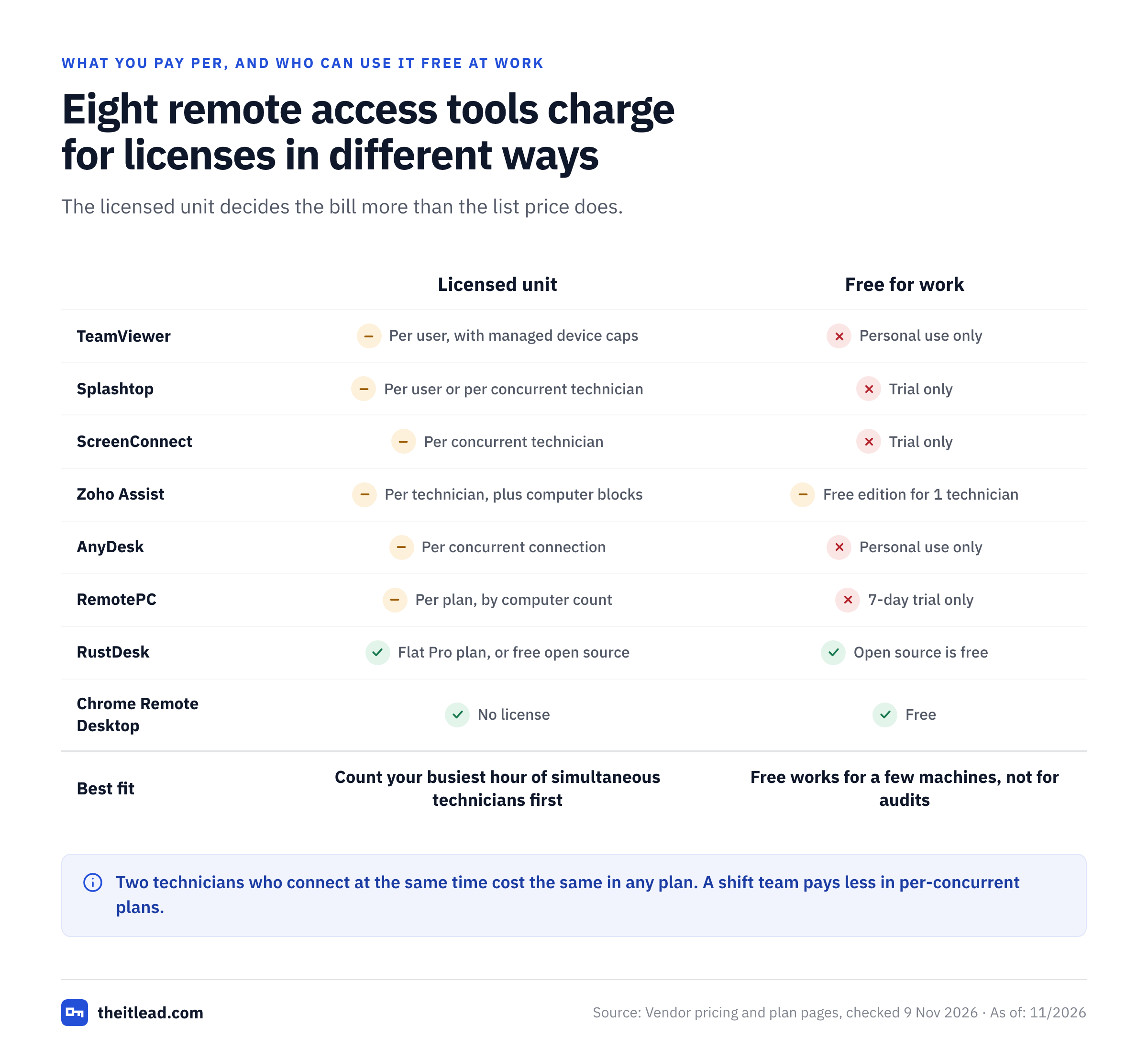
Prices in this list run from free to $57 per concurrent technician a month. Every vendor discounts annual billing, TeamViewer and AnyDesk sell by region or quote, and the unit you pay for changes from tool to tool. The calculator below uses the entry business plan with the features most teams need and billing as listed in each entry.
Prices checked November 9, 2026. Concurrent-technician plans cost less than the table suggests if your team connects in shifts.
Five things raise the bill after the first quote:
- Concurrent sessions are capped per plan: ScreenConnect allows up to 3 per technician on Standard, Zoho Assist 2 on Standard, and TeamViewer Business and Premium one channel.
- Managed device limits step up with the plan: AnyDesk goes from 100 on Solo to 1,000 on Advanced, TeamViewer from 200 on Business to 500 on Corporate.
- Separate unattended licenses apply at Zoho Assist, where Unattended Access starts at 25 computers on top of Remote Support.
- Gated features move you up a tier: recording, file transfer, SSO and mass deployment sit on higher plans at nearly every vendor.
- Intro pricing ends after the first year at RemotePC, so compare the renewal rate.
Free remote access software
Free remote access software for work is really thin. Chrome Remote Desktop is free with no stated business restriction. RustDesk's open source client and server are free, and you host the server. The free versions of TeamViewer and AnyDesk are for personal use only, and Zoho Assist lists a free edition for one technician. Splashtop and ScreenConnect offer free trials but no permanent free plan, and RemotePC gives a 7-day trial.
Free is a fair choice for a one-person team with a few machines, but of course it stops working when you need to know who connected to which computer last month, because only the paid tiers of the commercial tools and RustDesk Pro publish an audit log.
Is remote access software secure?
Remote access software is only as secure as its configuration, indeed more so than most tools on a help desk's list. These tools encrypt sessions (TeamViewer and RemotePC state 256-bit AES, and AnyDesk lists TLS 1.3 with 256-bit AES), so the realistic risks are stolen technician credentials and agents nobody remembers. The tool that can reach every computer is also the first thing an attacker will go after, which is especially true for shared logins.
- Turn on two-factor authentication for every technician account
- Give each technician a named login and never share one
- Limit each technician to the groups of devices they support
- Require the user's consent for attended sessions where the tool allows it
- Keep session logs, and use recording for privileged work if your plan has it
- Don't expose RDP directly to the internet; put it behind a gateway, VPN or a remote access tool
- Remove the agent when a device leaves the fleet
- Review who holds a license or console admin role every quarter
Ask each vendor what's included on the plan you'd buy: SSO, audit logs and recording are the features most often reserved for the top tiers. For privileged sessions and admin elevation, see our guide to privileged access management software. If your technicians work from tickets, the service desk software comparison covers the tools that sit next to these, and the IT management software overview shows where remote access fits in the wider stack.
Where a remote tool stops
Remote access software answers one question: can a technician reach this machine. It doesn't tell you which accounts the agents and deployment scripts run under, or who answers for them. An unattended agent such as Zoho Assist's runs with system-level privileges, and every install typically leaves a service account or deployment account behind.
Frequently asked questions
What is the best remote access software for IT teams?
The best remote access software for most IT teams is TeamViewer for mixed fleets and integrations, Splashtop for the lowest per-user price and ConnectWise ScreenConnect for MSPs that need per-technician control or self-hosting. The right choice really depends on how many technicians connect at the same time and how many devices you manage.
Is TeamViewer really free?
TeamViewer is free only for personal, non-commercial use. Its own help article says that even checking work email from a home office counts as commercial use, and devices flagged as commercial can stay blocked. For work you need a paid Business, Premium or Corporate plan.
Can I remotely access my PC?
Yes. Install a remote access tool such as Chrome Remote Desktop, RemotePC or Splashtop on the PC, set a PIN or password and connect from another computer, a browser or a phone. Windows Pro also includes Remote Desktop, which is best used behind a VPN or gateway, not exposed to the internet.
What is replacing RDP?
Many teams now put RDP behind a VPN or a gateway, or replace it with a remote access tool that adds multi-factor authentication and session logs. The tools in this list use their own encrypted connection instead of an open RDP port.
What is the difference between remote access and remote support?
Remote access means connecting to a device at any time without the user present, usually through an installed agent. Remote support means a technician helps a user who's at the screen, usually with a one-time code. Most tools in this list do both, and Zoho Assist and Splashtop license them separately.
Is remote access software safe for business?
It's safe when you use two-factor authentication, named technician accounts, logs and the right plan. The main risks are stolen credentials and old agents left on retired devices, not the encryption.